
Anker Laptop Docking Station Dual Monitor
4.5Editor score
8-in-1 USB-C hub design
Dual 4K HDMI output support
85W Power Delivery pass-through
Compare the top 10 docking stations for Dell laptops in October 2026, featuring USB-C hubs with dual monitors and fast charging to boost productivity.
Finding the right docking station for your Dell laptop is essential for maximizing productivity and creating a seamless desktop workspace. A high-quality dock expands your connectivity options, allowing you to connect multiple monitors, peripherals, and storage devices through a single USB-C cable. This ensures a clutter-free desk and efficient workflow for professionals and enthusiasts alike.
We have carefully evaluated ten leading docking stations based on compatibility, port variety, power delivery capabilities, and overall build quality. Our analysis focuses on models that support Dell-specific features like Thunderbolt and DisplayPort Alt Mode while offering versatile connections for other devices. Each entry provides detailed insights into performance, usability, and specific use cases to help you make an informed decision.
Every product in this guide showcases unique strengths tailored to different needs, from budget-friendly hubs to premium universal docks with advanced management features. We highlight key specifications and real-world performance to clarify what each pick offers for your setup. Please note that product availability and terms may change, so verify details before purchasing to ensure compatibility with your specific laptop model.
4.5Editor score

4.5Editor score

4.3Editor score
This side-by-side comparison highlights the key specifications and capabilities of the top docking stations available for Dell laptops in November 2026. By examining ports, power delivery, display support, and unique features, you can quickly identify which model aligns best with your workspace requirements and performance expectations.




The Dell Pro Laptop Docking Station WD25 stands out as a top-tier solution for professionals seeking robust connectivity and manageability. With a 4.5 rating, it delivers powerful compatibility for AI-enabled Dell PCs and non-Dell devices alike. Its design prioritizes both performance and sustainability, making it a versatile choice for modern workspaces.
We may earn a commission when you buy through this link, at no additional cost to you.
This dock supports up to four high-resolution displays, allowing users to expand their views significantly. The ambidextrous USB-C cable routing offers practical flexibility for cable management on any desk. Additionally, its enhanced durability and power efficiency ensure long-term reliability and reduced energy costs.
While the price is higher than basic hubs, the value lies in its advanced manageability features and premium build quality. The reduction in standby power consumption and use of recycled materials reflect a commitment to eco-friendly practices. These trade-offs are acceptable for users prioritizing enterprise-grade features.
Ideal for business environments and power users, this dock simplifies complex setups while maintaining high performance. IT teams will appreciate the flexible management capabilities that keep users productive without disruption. For Dell laptop owners seeking a premium, future-proof docking solution, the WD25 is a highly recommended choice.
The WD25 supports up to four high-res displays, enabling seamless multitasking and expanded screen real estate for complex workflows.
Built with at least 65% postconsumer recycled materials, this dock aligns with modern sustainability goals while maintaining performance standards.
We may earn a commission when you buy through this link, at no additional cost to you.
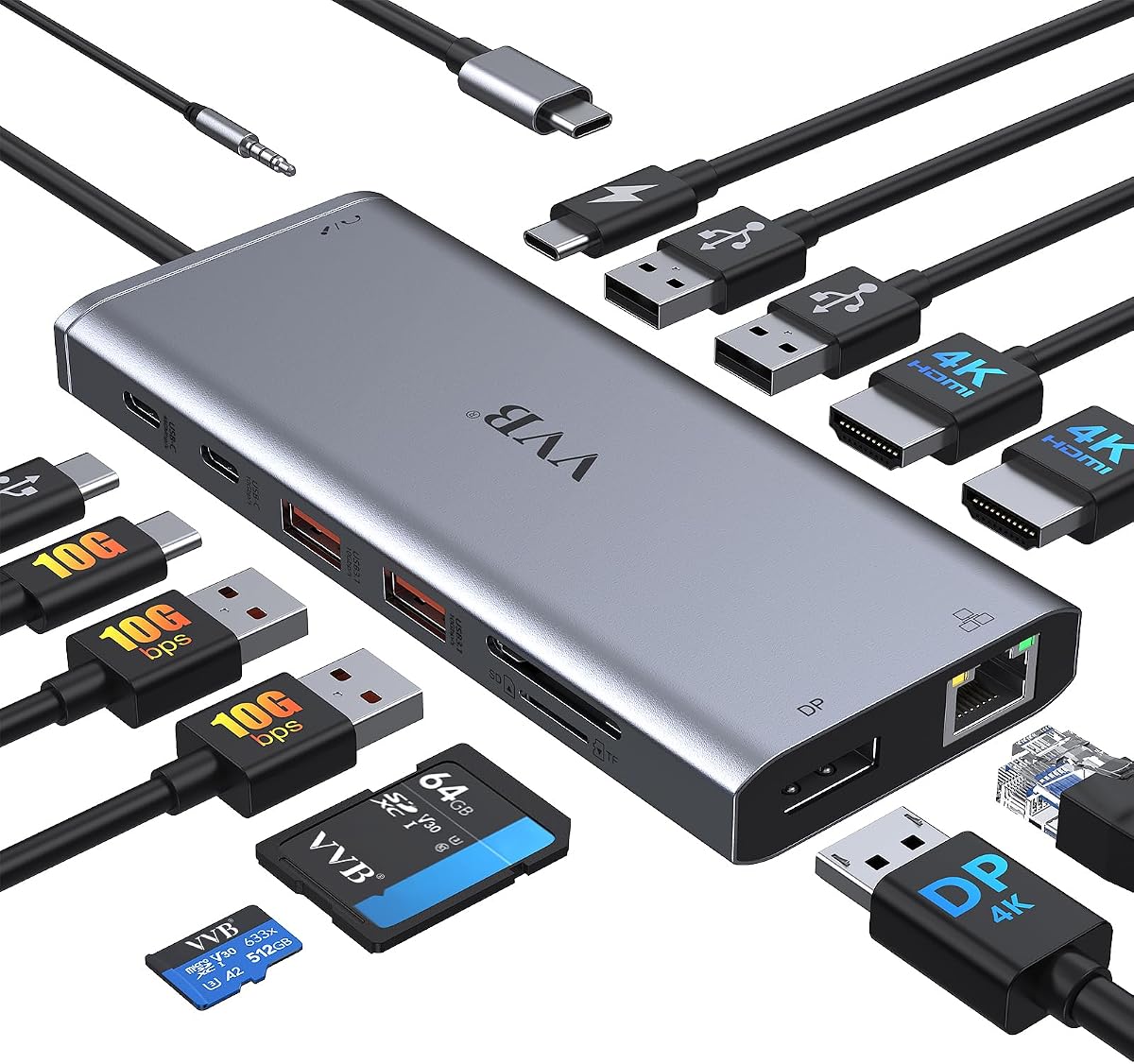
The Anker Laptop Docking Station Dual Monitor offers an exceptional balance of features and affordability. Rated 4.5 stars, this 8-in-1 USB-C hub provides massive expansion capabilities through a single port. It is ideal for users needing multiple displays and charging without breaking the bank.
We may earn a commission when you buy through this link, at no additional cost to you.
Key strengths include dual HDMI ports supporting 4K resolution, perfect for streaming or extended work. The 85W Power Delivery pass-through ensures your laptop charges efficiently while connected. Additionally, the SD card reader and Ethernet port add versatility for content creators and network users.
Limitations include Linux incompatibility and macOS mirror mode restrictions for dual displays. However, these constraints are minor for most Windows-based Dell laptop users. The compact design and reliable performance make it a solid investment for home or office use.
For budget-conscious buyers seeking reliable multi-monitor setups, this Anker hub delivers impressive value. It simplifies connectivity while maintaining high performance for everyday tasks. Consider this option if you need essential ports without paying for premium enterprise features.
Stream content to two displays in 4K resolution, enhancing productivity and entertainment options with crystal-clear visuals.
Compatible with USB-C PD to provide high-speed pass-through charging up to 85W, keeping your laptop powered during intense use.
We may earn a commission when you buy through this link, at no additional cost to you.
The Anker Prime Docking Station is a powerhouse for users demanding maximum connectivity and performance. With a 4.3 rating, its 14-in-1 solution brings together all essential devices seamlessly. It excels in charging capacity and data transfer speeds, making it a premium choice for multitaskers.
We may earn a commission when you buy through this link, at no additional cost to you.
This dock delivers 160W of total output, charging up to four devices simultaneously with high efficiency. Data transfer speeds reach 10Gbps, allowing quick file sharing across multiple devices. The dual 4K display support ensures smooth streaming and extended workspace capabilities.
While the price reflects its premium features, the versatility justifies the investment for professionals. Note that it does not support 5120×1440 monitors, which may limit ultra-high-resolution setups. However, for most workflows, the balance of power and connectivity is outstanding.
Ideal for power users and tech enthusiasts, this dock handles complex setups with ease. The warranty support and customer service further enhance its appeal. Choose this if you need a robust, high-performance docking solution for your Dell laptop.
Deliver powerful charges up to 160W and transfer data at 10Gbps speeds for efficient, seamless connectivity.
Connect to dual HDMI ports for crystal-clear streaming or mirroring across two displays at up to 2K@60Hz.
We may earn a commission when you buy through this link, at no additional cost to you.
This USB-C docking station offers versatile connectivity for HP and Dell laptops alike. Rated 4.3 stars, its 8-in-1 design includes triple display options and robust charging capabilities. It is a practical solution for users needing extensive ports without high complexity.
We may earn a commission when you buy through this link, at no additional cost to you.
The station supports up to 4K resolution on multiple outputs, though VGA connections may limit resolution to 1080p. The 100W USB-C input ensures your laptop receives sufficient power. USB 2.0 ports provide lag-free mouse and keyboard connections, enhancing productivity.
A key consideration is the need for a separate power adapter, which may not be included. Additionally, macOS users face mirror mode limitations. However, for Windows users seeking affordability and port variety, this dock performs reliably for everyday tasks.
Best for budget-conscious professionals needing multiple monitors and peripheral support, this hub delivers solid performance. It simplifies connections while maintaining functionality for essential devices. Consider this option if you need a flexible, affordable docking solution.
Output up to 4K dual or triple display videos for enhanced multitasking and productivity across multiple screens.
Supports up to 100W input and 87W safe output, ensuring your laptop charges efficiently while in use.
We may earn a commission when you buy through this link, at no additional cost to you.
The Anker Nano Docking Station combines versatility with portability through its unique detachable design. Rated 4.2 stars, it serves as both a full desktop dock and a compact travel hub. This dual functionality makes it ideal for professionals who work from multiple locations.
We may earn a commission when you buy through this link, at no additional cost to you.
Key strengths include support for up to three monitors and 100W laptop charging. The detachable 6-in-1 hub allows you to take essential ports on the go without carrying the full dock. Data transfer speeds reach 10Gbps, ensuring quick file access.
Limitations include the requirement for a laptop connection to activate ports and lack of Linux support. However, these are minor trade-offs for the flexibility provided. The included 140W adapter ensures stable performance under heavy loads.
Perfect for data analysts and content creators who need screen real estate and mobility, this dock offers complete package value. Plug and play setup means no drivers are needed. Choose this for a flexible solution covering both desk and travel needs.
Features a 13-in-1 desktop dock with a detachable 6-in-1 portable hub for seamless transition between office and travel.
Connect up to 3 monitors via HDMI and DisplayPort for a full desktop workstation experience.
We may earn a commission when you buy through this link, at no additional cost to you.
This 14-in-1 USB-C docking station provides extensive connectivity for Dell laptops and other devices. With a 4.3 rating, it supports triple displays and high-speed data transfer, making it ideal for power users. The inclusion of Gigabit Ethernet adds reliability for network tasks.
We may earn a commission when you buy through this link, at no additional cost to you.
It supports up to 4K resolution on dual monitors and provides 10Gbps data transfer via USB-A and USB-C ports. The SD card reader allows quick access to photos and videos. This comprehensive port selection reduces the need for multiple adapters.
Limitations include the absence of an included power adapter and Linux incompatibility. However, for Windows users, the versatility and speed are compelling. Ensure your laptop supports Power Delivery to maximize charging efficiency.
Best for users needing a versatile, high-performance hub, this station delivers excellent value. It simplifies complex setups while maintaining high-quality output. Consider this if you want extensive connectivity without compromising on speed or display quality.
Support dual monitor and triple displays for Windows, with single display resolution up to 4K@60Hz.
USB-C and USB-A ports offer speeds up to 10Gbps for quick file transfers between devices.
We may earn a commission when you buy through this link, at no additional cost to you.
The Dell WD19S 180W Docking Station is designed for users needing high-power delivery and reliable connectivity. With a 3.8 rating, it features a robust 180W adapter and 130W power delivery, ensuring stable performance for demanding tasks. It serves as a solid universal dock for various setups.
We may earn a commission when you buy through this link, at no additional cost to you.
Key strengths include dual DisplayPort and HDMI support, allowing multiple display configurations. The high wattage ensures your laptop charges quickly even during intensive use. It is optimized for Dell workspaces, integrating well with Dell peripherals.
Limitations include fewer ports compared to newer 14-in-1 models and a basic feature set. However, for users prioritizing raw power and stability over extensive ports, this dock is reliable. The black finish complements modern desks.
Ideal for professionals needing high power and simple connectivity, this dock delivers consistent performance. It simplifies connections for workstations requiring multiple monitors. Consider this if you need a robust, high-power docking solution.
Power your connections with 130W USB-C delivery and a 180W total power adapter for stable, efficient performance.
Optimize your workspace with built-in features designed for future compatibility and reliable Dell integration.
We may earn a commission when you buy through this link, at no additional cost to you.
This Anker Laptop Docking Station excels in providing triple display capabilities within a compact design. Rated 4.0 stars, its 13-in-1 connectivity offers extensive port options for multitasking. The vertical layout saves desk space, making it suitable for small workspaces.
We may earn a commission when you buy through this link, at no additional cost to you.
It supports up to three 1080p displays at 60Hz, ideal for trading or content analysis. Charging capacity reaches 85W for the host laptop, with additional ports for peripherals. The compact size and included warranty enhance its practical appeal.
Limitations include macOS mirror mode restrictions and the need for full-featured USB-C ports. However, for Windows users, this dock offers excellent value. The 10Gbps data transfer ensures quick file access across devices.
Best for data analysts and traders needing multiple screens, this station delivers efficient performance. It simplifies complex setups without cluttering the desk. Consider this if you need triple displays and reliable charging in a compact form.
Run up to 3 external monitors at 1080p@60Hz for expanded multitasking and productivity.
A compact vertical design saves desk space while providing all necessary ports for your setup.
We may earn a commission when you buy through this link, at no additional cost to you.
The Dell WD19 130W Docking Station is a reliable choice for Dell laptop owners seeking essential connectivity. With a 4.0 rating, it offers dual DisplayPort and HDMI support for multiple monitors. The 90W USB-C power delivery ensures your laptop charges efficiently during use.
We may earn a commission when you buy through this link, at no additional cost to you.
Key features include a Gigabit Ethernet port for stable networking and an audio combo port for headsets. It includes multiple USB-A and USB-C ports for peripherals. The black finish and standard design integrate well into office environments.
Limitations include being an older model with fewer features than newer options. However, for users needing basic reliable connectivity, it performs well. Verify compatibility with your specific Dell laptop model before purchase.
Ideal for standard office setups and Dell users needing reliable multi-monitor support, this dock delivers solid value. It simplifies connections while maintaining essential functionality. Consider this for a straightforward, effective docking solution.
Ports include 2x DisplayPort 1.4 and 1x HDMI 2.0B for versatile display options.
Includes Gigabit Ethernet and a combo Audio/headset port for reliable networking and audio connectivity.
We may earn a commission when you buy through this link, at no additional cost to you.
This renewed WD19 Dell Docking Station offers significant value for users seeking reliable connectivity at a lower cost. Rated 4.1 stars, it includes a robust 180W adapter and supports multiple Dell laptop series. The renewed status ensures quality at a reduced price.
We may earn a commission when you buy through this link, at no additional cost to you.
It supports USB-C and Thunderbolt connections, allowing versatile setup options. Multiple USB-A ports and audio outputs provide essential peripheral connectivity. The broad compatibility with Inspiron and XPS models makes it a flexible choice.
Limitations include potential firmware updates for full compatibility and specific model support. However, the included cables and adapter add convenience. Verify your laptop model prior to purchase to ensure optimal use.
Ideal for budget-conscious users needing proven Dell compatibility, this dock delivers essential features. It simplifies connections and maximizes productivity. Consider this for a cost-effective, reliable docking solution.
Effortlessly connect peripherals with a renewed dock that maximizes productivity and offers significant value.
Supports various devices including select models from Inspiron, XPS, and Latitude series.
We may earn a commission when you buy through this link, at no additional cost to you.
Selecting the right docking station requires careful consideration of your laptop model, connectivity needs, and budget. This guide outlines key factors to ensure you choose a dock that enhances productivity without compromising performance or compatibility.
Ensure the docking station supports your Dell laptop's specific USB-C or Thunderbolt capabilities. Check for DisplayPort Alt Mode support to enable video output. Mismatched connections may lead to limited functionality or no display output at all.
Verify that the dock explicitly lists compatibility with your Dell series, such as Latitude or XPS, to avoid connectivity issues.
Look for a dock that provides sufficient wattage to charge your laptop while connected. Most Dell laptops require at least 65W to 100W for efficient charging. Insufficient power delivery can result in slower charging or battery drain during heavy use.
Choose a dock with a high-power adapter to ensure stable performance under full load.
Assess your need for multiple monitors based on your workflow. Some docks support dual 4K displays, while others limit output to 1080p. Ensure the dock supports your desired resolution and refresh rate for a smooth experience.
Prioritize docks that support at least dual displays if multitasking is a key requirement.
Evaluate the types of ports included, such as USB-A, Ethernet, and card readers. USB-C ports with 10Gbps speeds are essential for fast data transfer. A versatile port selection reduces the need for additional dongles.
Select a dock that offers the necessary ports for your peripherals to maintain a streamlined setup.
Consider the materials and design of the dock, especially if it will be moved frequently. Robust connectors and heat dissipation features ensure longevity. A well-built dock minimizes wear and tear over time.
Opt for models with durable connectors and solid construction to extend the lifespan of your investment.
Confirm that the docking station works with your operating system. While most support Windows, Linux or macOS compatibility varies. Some docks limit multi-monitor setups to mirror mode on Mac, affecting productivity.
Choose a dock explicitly supporting your operating system to avoid functional restrictions and software issues.
Balance the features offered with your budget to avoid overspending on unnecessary capabilities. Higher-end models provide better power and port options but may not be essential for basic tasks. Check warranty terms for added protection and support.
Invest in a dock that offers a reliable warranty and aligns with your financial constraints for peace of mind.
To set up your docking station, connect the power adapter first, then plug the upstream USB-C cable into your laptop. Once connected, your laptop should automatically detect the dock and configure displays. Adjust display settings in your system preferences for extended or mirrored modes.
Regularly clean the dock and ports with a soft, dry cloth to prevent dust buildup. Avoid exposing the dock to direct sunlight or extreme temperatures, as heat can degrade internal components. Proper ventilation ensures optimal performance and longevity.
Keep your laptop and dock firmware updated to maintain compatibility and performance. Update drivers from the manufacturer's website to resolve potential connectivity issues. Periodically check cable connections to ensure they are secure and undamaged.
The Dell Pro Laptop Docking Station WD25 is an excellent choice due to its 100W power delivery and support for up to four displays. It offers enhanced compatibility with Dell AI PCs and robust manageability. For budget-conscious users, the Anker 8-in-1 hub provides strong value with dual 4K HDMI support.
Yes, your Dell laptop must have a full-featured USB-C port that supports DisplayPort Alternate Mode and Power Delivery. Basic charging-only ports will not support video output or data transfer. Check your laptop's specifications to ensure it meets these requirements.
Yes, docking stations can be shared among multiple Dell laptops provided they support the same USB-C standards. Simply disconnect and reconnect the upstream cable to switch devices. Ensure power delivery wattages match each laptop's needs.
Ensure your laptop's USB-C port supports video output and that the dock is properly powered. Update your graphics drivers and dock firmware to resolve compatibility issues. Verify cable connections are secure and that your system recognizes the display.
Yes, most modern docking stations support pass-through charging to power your Dell laptop. Ensure the dock provides sufficient wattage for your laptop model to charge efficiently. Use a compatible power adapter to maintain stable charging performance.
Thunderbolt docks offer higher data transfer speeds and support for more peripherals compared to standard USB-C docks. USB-C docks are more common and sufficient for most basic needs. Check if your laptop supports Thunderbolt to determine compatibility.
A docking station simplifies connectivity and reduces cable clutter, making daily workflows more efficient. It allows easy access to multiple monitors and peripherals with a single connection. While not essential, it significantly enhances productivity for office users.
The Dell Pro Laptop Docking Station WD25, Anker Dual Monitor Hub, and Anker Prime Station lead the pack for their performance, versatility, and value. Each offers unique strengths tailored to different needs, from premium enterprise features to budget-friendly connectivity.
Prioritize compatibility and power delivery when selecting a dock to ensure smooth operation with your Dell laptop. Consider your workflow requirements such as display count and data speeds to choose the best fit for your tasks.
Product availability and terms may change over time, so verify current specifications before purchasing. Investing in the right docking station will streamline your workspace and enhance overall productivity for years to come.