
VENTION 6-in-2 USB C Hub
4.3Editor score
Affordable magnetic connection
Supports 8K video output
140W max PD charging
Compare the top 10 docking stations for MacBook Neo in October 2026, evaluating ports, charging speed, display support, and compatibility for your setup.
Finding the right docking station for your MacBook Neo can transform your workspace into a powerful productivity hub. With limited ports on modern laptops, a reliable hub is essential for connecting monitors, storage, and peripherals seamlessly.
We have analyzed the latest models available on the market to bring you this comprehensive list. Each product was evaluated based on port variety, power delivery capabilities, display resolution support, and overall build quality to ensure they meet professional standards.
Each entry below highlights key features, pros, and cons to help you make an informed decision. Please note that prices and availability can change rapidly, so verify current details before purchasing to ensure you get the best value for your needs.
4.3Editor score

4.5Editor score
4.1Editor score
This table provides a side-by-side comparison of the top 10 docking stations available for MacBook Neo users. Compare key specifications like port counts, video support, and power delivery at a glance to find the right fit for your workflow.





This Anker model stands out as a top choice for MacBook Neo users needing versatile connectivity. It offers an impressive range of ports including dual HDMI, Ethernet, and card readers, making it a complete solution for expanding your laptop's capabilities.
We may earn a commission when you buy through this link, at no additional cost to you.
The dual HDMI support allows for stunning 4K@60Hz output on a single monitor or 4K@30Hz on two simultaneously. Power delivery is handled effectively with up to 85W pass-through charging, ensuring your laptop stays powered while you work on connected peripherals.
While it is a powerful tool, users should note that it does not support Linux systems. Additionally, the requirement for a 100W PD wall charger means you need specific accessories to achieve the maximum charging speeds advertised.
For professionals who need reliable dual monitor setups without complex configurations, this hub is an excellent investment. Its compact design and robust port selection make it ideal for home offices and mobile workstations alike.
With four USB-A ports and dual HDMI, you can connect almost any peripheral without extra adapters.
Enjoy crystal clear visuals on external screens thanks to 4K@60Hz HDMI capabilities.
We may earn a commission when you buy through this link, at no additional cost to you.
The iVANKY FusionDock 1 is designed for users who demand high refresh rates for smoother visuals. It supports dual 4K@120Hz on compatible M-series Macs, making it a favorite among gamers and video editors who need fluid motion.
We may earn a commission when you buy through this link, at no additional cost to you.
It comes with a robust 150W power adapter that ensures stable charging even under heavy loads. The dock includes multiple USB 3.0 ports for fast data transfers and a dedicated Gigabit Ethernet port for reliable internet connectivity without Wi-Fi drops.
Users with M1, M2, or M3 base chips should note that dual display support is limited. The power adapter is also quite large which might add bulk to your travel bag. However, performance is solid for those who need the extra bandwidth.
If you require high refresh rates for creative work or gaming on your MacBook Neo, this dock is a strong contender. Just ensure your laptop model supports the dual high-refresh output before purchasing.
The ability to run displays at 120Hz provides a significant upgrade in motion smoothness.
With up to 96W charging to the laptop, you never have to worry about power draining.
We may earn a commission when you buy through this link, at no additional cost to you.
The Anker Nano Docking Station offers a unique modular approach to connectivity. It functions as a full desktop dock but includes a detachable hub for portable use, effectively serving two purposes in one product package.
We may earn a commission when you buy through this link, at no additional cost to you.
Its ability to support triple displays makes it a powerhouse for multitasking. The 100W laptop charging ensures your machine runs at full speed even when connected to multiple peripherals. Data transfer speeds are also excellent with 10Gbps options available.
On the downside, it is a larger unit which might not fit small desks easily. The blue light and ports only activate when a laptop is connected which is convenient but requires a specific workflow. Setup is straightforward and drivers are not needed.
For professionals who switch between home office and field work, this dock provides exceptional versatility. It eliminates the need to buy separate travel adapters while maintaining high performance at the desk.
The detachable hub allows you to take key ports on the go without carrying the full dock.
Connecting three monitors boosts productivity by allowing you to view multiple applications simultaneously.
We may earn a commission when you buy through this link, at no additional cost to you.
This Anker hub is designed specifically for modern MacBooks requiring a lightweight and efficient solution. It expands your connectivity to include HDMI, USB-A, and SD slots while maintaining an incredibly small footprint.
We may earn a commission when you buy through this link, at no additional cost to you.
The multi-function USB-C port supports data transfer up to 40 Gb/s and video up to 5K resolution. Power delivery is handled up to 100W ensuring your laptop charges while connected. The design avoids blocking the MagSafe port which is a common issue.
However, note that it is not compatible with MacBook Neo models. The reduced port count might not suffice for users needing many connections. But for those prioritizing travel weight, this hub is a top-tier choice.
If you need a simple plug-and-play solution for travel or minimal desk setups, this hub is ideal. It delivers high performance without the bulk of traditional docking stations.
The slim profile ensures it fits easily in any laptop bag without adding bulk.
Supporting up to 5K resolution ensures compatibility with high-end external displays.
We may earn a commission when you buy through this link, at no additional cost to you.
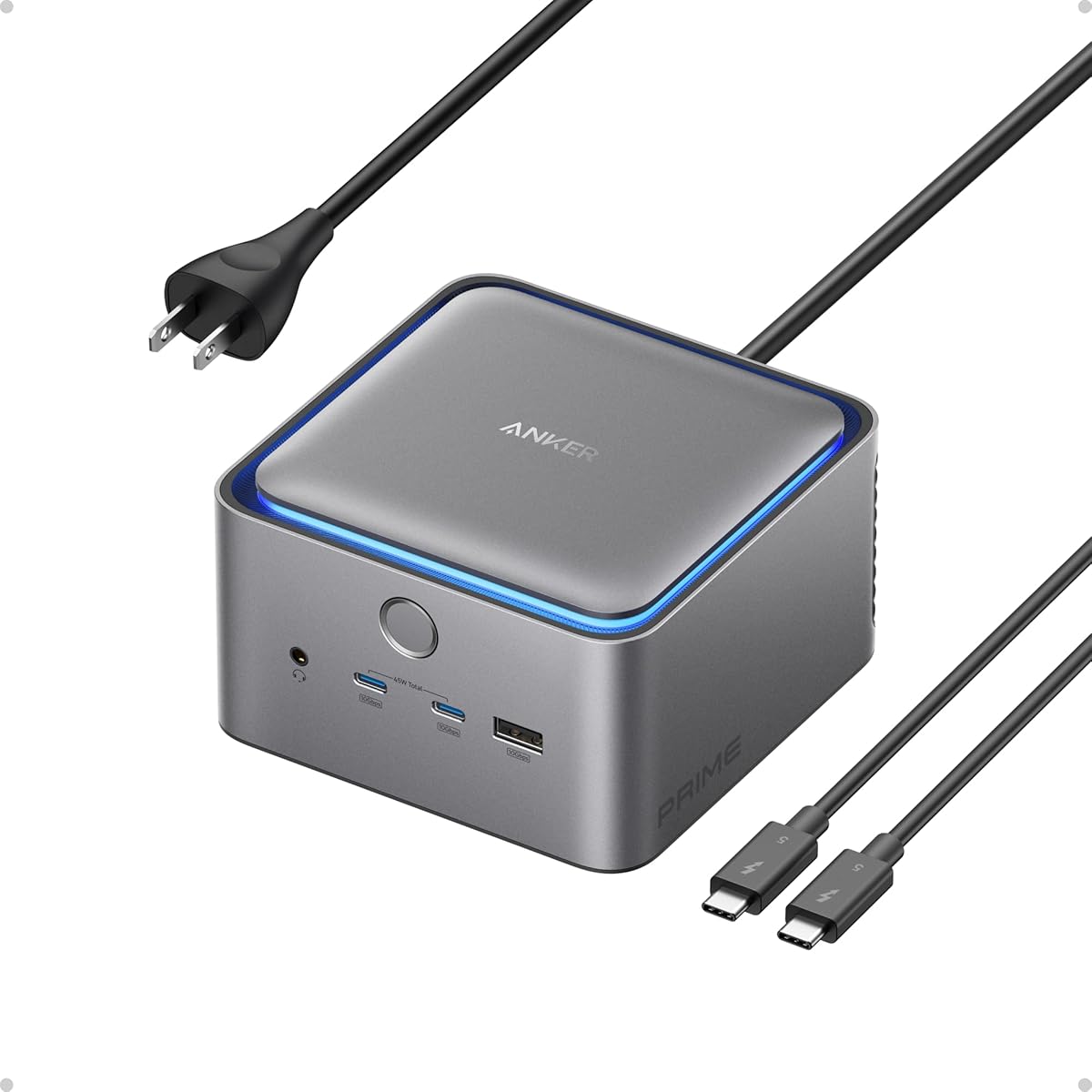
The Anker Prime Docking Station delivers exceptional power management capabilities. With a total output of 160W it can charge your laptop and multiple other devices simultaneously. This makes it a reliable choice for users with multiple USB-C accessories.
We may earn a commission when you buy through this link, at no additional cost to you.
Dual HDMI ports support crisp 4K displays allowing for an immersive viewing experience. The data transfer capabilities are robust ensuring quick file movement. The inclusion of multiple USB-C ports allows for flexible connection options.
While it does not support 5120×1440 monitors, it covers most standard high-resolution needs. Linux users should look elsewhere as this device does not support that OS. Overall it provides a strong balance of power and connectivity.
For workstations where multiple devices need charging and connection this dock is an excellent central hub. It simplifies cable management and ensures all peripherals receive adequate power.
Charge up to four devices at once ensuring all your gear is ready to go.
With 10Gbps transfer speeds you can move large files quickly without bottlenecks.
We may earn a commission when you buy through this link, at no additional cost to you.
The VENTION hub offers an impressive feature set at a budget-friendly price. Its magnetic detachable design allows for easy connection and disconnection which is particularly useful for frequent travelers. It supports high bandwidth for fast data transfer.
We may earn a commission when you buy through this link, at no additional cost to you.
Video output capabilities are advanced with support for 8K@60Hz. This ensures future-proofing for high-resolution displays. The PD pass-through charging up to 140W ensures your laptop receives sufficient power during heavy usage.
One consideration is that it may not fit if a case is on the bottom of the MacBook. The magnetic connection is convenient but requires precise alignment for stable power. For budget-conscious buyers it is a strong option.
If you need a versatile hub without spending a lot of money this model provides great value. It covers essential ports and high-speed data while keeping costs low.
The magnetic design simplifies the process of connecting and disconnecting your laptop.
Supporting 8K output ensures compatibility with next-generation display technology.
We may earn a commission when you buy through this link, at no additional cost to you.
This TB5 dock is a top-tier performance solution for high-end laptops. With Thunderbolt 5 connectivity it offers data transfer speeds that are nearly unbeatable. The active cooling system ensures the device remains stable even under full load.
We may earn a commission when you buy through this link, at no additional cost to you.
It supports dual 8K displays making it ideal for creative professionals who need color accuracy and resolution. The 140W max charging ensures your laptop is fully powered while running multiple peripherals. It is a robust and reliable hub.
The high price reflects the premium technology involved. Not all laptops support Thunderbolt 5 so verify compatibility before buying. The cooling system is essential for maintaining performance during extended sessions.
If you need the absolute fastest connection speeds and high-resolution display support this dock is unmatched. It delivers exceptional performance for professionals who cannot afford bottlenecks in their workflow.
Move massive files in seconds thanks to Thunderbolt 5 bandwidth capabilities.
Active cooling prevents overheating ensuring consistent performance during heavy tasks.
We may earn a commission when you buy through this link, at no additional cost to you.
This product combines a docking station with a vertical stand to save desk space. It holds your MacBook upright while providing all necessary ports for connectivity. The dual HDMI support allows for high-resolution external display configurations.
We may earn a commission when you buy through this link, at no additional cost to you.
Power delivery is managed up to 87W for the MacBook ensuring efficient charging. The build includes Gigabit Ethernet and SD card slots for comprehensive connectivity. It simplifies your setup by reducing cable clutter significantly.
Note that M1/M2/M3 chip MacBooks only support single-screen expansion. It is designed specifically for MacBook Pro and Air models. The stand helps improve ergonomics and keeps your laptop cool during use.
For users wanting a neat desk setup with a vertical dock this is an excellent choice. It combines function and form to provide a tidy and efficient workspace.
Lifting your laptop vertically frees up valuable desk space for other tasks.
With dual 4K HDMI and Ethernet you can connect all your essential peripherals easily.
We may earn a commission when you buy through this link, at no additional cost to you.
With 18 ports this docking station offers extensive connectivity options. It is designed for users who have many peripherals to connect at once. The dual 4K support ensures smooth external display performance for professional tasks.
We may earn a commission when you buy through this link, at no additional cost to you.
Power delivery is robust with up to 100W charging for your laptop. Additional 30W ports allow for quick charging of phones and tablets. The 2.5G Ethernet port provides faster internet speeds than standard Gigabit connections.
While it supports M5/M4 Pro/Max chips for dual displays, older models are limited to one screen. The sheer number of ports makes it a versatile choice for complex setups. It is well built for durability.
If you need to connect many devices without using multiple hubs this dock is ideal. It provides a centralized hub for all your accessories and charging needs.
With 18 ports you can connect virtually all your devices simultaneously.
SD card 4.0 and Ethernet ensure fast data transfer for large files.
We may earn a commission when you buy through this link, at no additional cost to you.
The Plugable dock is known for its reliability and ease of use. It requires no drivers and works seamlessly with MacBooks and Windows systems. The Thunderbolt 4 connection ensures high data and power transfer speeds.
We may earn a commission when you buy through this link, at no additional cost to you.
It supports dual 4K displays which is perfect for productivity tasks. The 100W charging ensures your laptop stays powered throughout the day. With 13 ports it covers almost every connectivity need for modern users.
Base M1 and M2 MacBooks are limited to a single external display. The lifetime support from Plugable adds significant value to the purchase. It is designed to meet deployment demands for businesses and home offices.
For users valuing stability and long-term support this dock is a top choice. It provides a hassle-free experience for professional work environments.
Plug and play operation eliminates the need for complicated software installations.
Lifetime technical support ensures you have assistance whenever you need it.
We may earn a commission when you buy through this link, at no additional cost to you.
Selecting the right docking station requires understanding your specific workflow needs and device limitations. This guide outlines key factors to consider.
Evaluate the number and types of ports you need daily. Consider USB-A, USB-C, HDMI, and Ethernet availability to ensure all peripherals connect easily.
Choose a dock that offers sufficient ports to avoid using additional adapters.
Check the maximum resolution and number of external displays supported. Some hubs support only a single display for base chip MacBooks.
Ensure the dock matches your monitor requirements for video editing or multitasking.
Look for docks that support pass-through charging to keep your MacBook powered. Higher wattage ensures stable operation even when multiple devices are connected.
Aim for at least 85W pass-through for reliable daily charging.
Verify whether the dock uses USB-C or Thunderbolt. Thunderbolt offers faster speeds but costs more.
Select based on your laptop's input capabilities and speed needs.
Durable materials like aluminum help with heat dissipation and longevity. Avoid cheap plastic housings that may warp under heat.
Invest in metal docks for better stability and thermal performance.
Confirm the dock works with your specific MacBook model and OS. Linux support may be limited on some Mac-focused docks.
Always read product descriptions to avoid compatibility issues.
A good dock reduces cable clutter by consolidating connections. Look for integrated power cables or neat designs.
Clean setups improve workspace organization and reduce tripping hazards.
Check the length of the warranty and the availability of customer support. Longer warranties indicate manufacturer confidence.
Prioritize brands offering responsive support teams for troubleshooting.
Connect the dock to your MacBook Neo using the appropriate upstream cable. Ensure the power adapter is plugged in before connecting peripheral devices to avoid power surges.
Organize cables neatly behind your desk to prevent tangling. Use cable ties or channels to maintain a tidy workspace and reduce wear on ports.
Keep the dock in a well-ventilated area to prevent overheating. Avoid placing it near direct sunlight or heat sources to prolong its lifespan.
Yes, many modern docks support dual or triple monitors. However, base chip MacBook models like M1 and M2 often support only one external display without using display link technology. Always check the product specs.
Most docks require a dedicated power adapter for optimal performance. Using your laptop's original adapter might work but could limit charging speeds. Check the wattage requirements before purchasing.
Thunderbolt docks work with USB-C devices but at USB-C speeds. You lose the extra bandwidth unless your laptop has Thunderbolt support. Verify compatibility to ensure expected performance.
Firmware updates are usually managed through a specific software provided by the manufacturer. Check their support website for tools that help update the dock to the latest version.
Some docks are compatible with Linux but many focus on macOS and Windows. Always check the product description for Linux support details before purchasing to avoid issues.
Thunderbolt offers higher data transfer speeds and more functionality like daisy chaining. USB-C is more common and often cheaper but slower. Choose based on your speed needs.
Use a soft dry cloth to wipe down the exterior. Avoid liquids or harsh chemicals that could damage the ports. Keep the vents clear of dust to ensure proper cooling.
Flickering can occur due to bandwidth limitations or unstable connections. Try reducing resolution or refresh rates. Ensure all cables are firmly connected to prevent intermittent signals.
We have reviewed the top docking stations for MacBook Neo to help you choose the right solution. Each option offers unique features from modular designs to high-speed connectivity.
Prioritize your specific needs such as display support, power delivery, and port count. This ensures the dock enhances your workflow without unnecessary costs.
Remember to check current prices and availability before purchasing. Deals change often and verifying details helps you secure the best value for your investment.