
TobenONE DisplayLink Docking Station 3 Monitors
4.4Editor score
18 total ports included
120W power adapter included
Triple or quad 4K displays
This guide compares the top 10 docking stations with quad monitor support for Windows and Mac, evaluating display limits, power delivery, port selection, and
Finding the right docking station with quad monitor support is essential for professionals who need maximum screen real estate. Whether you are a trader, developer, or creative, connecting four displays cleanly requires a robust dock with high bandwidth and reliable power delivery.
We evaluated ten top-rated models based on display output capabilities, port variety, charging speed, and compatibility with Mac and Windows systems. Our analysis focuses on real-world performance, driver requirements, and build quality to ensure you get a reliable workstation upgrade.
Each pick below highlights specific strengths and trade-offs to match different workflow needs. Please note that product availability and pricing can change frequently, so verify current details on the manufacturer page before purchasing your ideal multi-monitor docking solution.
4.4Editor score

4.7Editor score
4.6Editor score
This comparison table summarizes the key specifications and capabilities of ten leading docking stations designed for quad monitor setups. Use this overview to quickly identify which model matches your specific display, power, and port requirements.


The StarTech Thunderbolt 5 Universal Docking Station stands out as a premium solution for users needing maximum performance. With a 4.7 rating and Thunderbolt 5 support, it delivers reliable quad monitor capabilities without requiring driver installation.
We may earn a commission when you buy through this link, at no additional cost to you.
Its standout feature is the driverless plug-and-play experience, which simplifies deployment in shared environments. The dock supports up to four extended 4K displays on Windows and leverages Apple Silicon capabilities for high-resolution workflows.
While the cost is higher than average, the investment ensures stability and compatibility across major laptop brands. The secure lock slots add value for office deployments, and the robust build quality supports long-term use.
This dock is ideal for professionals who need guaranteed performance and minimal IT overhead. If you use Thunderbolt laptops and require four screens, this model offers the best overall experience in the current market.
Thunderbolt 5 provides the bandwidth needed to drive multiple 4K displays simultaneously without compromising data transfer speeds.
Integrated security slots and rigorous testing ensure the dock performs reliably in high-traffic or hot-desking environments.
We may earn a commission when you buy through this link, at no additional cost to you.
The TobenONE DisplayLink Docking Station offers an accessible entry point for multi-monitor setups. With a 4.4 rating and 120W power adapter, it provides reliable quad monitor support without a high price tag.
We may earn a commission when you buy through this link, at no additional cost to you.
Its value lies in the extensive port selection and included power adapter. Users can connect multiple displays, peripherals, and network devices through a single USB-C connection, making it suitable for home offices.
While driver installation adds a setup step, the lifetime support guarantees help if issues arise. The dock does not support Linux or Unix systems, so compatibility should be checked before purchase.
This dock is recommended for budget-conscious users who prioritize display count over raw bandwidth. It delivers solid performance for general productivity and multitasking needs.
With 18 total ports, this dock connects nearly all peripherals, including Ethernet, audio, and multiple USB devices simultaneously.
The included 120W adapter charges your laptop and dock, reducing cable clutter and eliminating the need for extra chargers.
We may earn a commission when you buy through this link, at no additional cost to you.
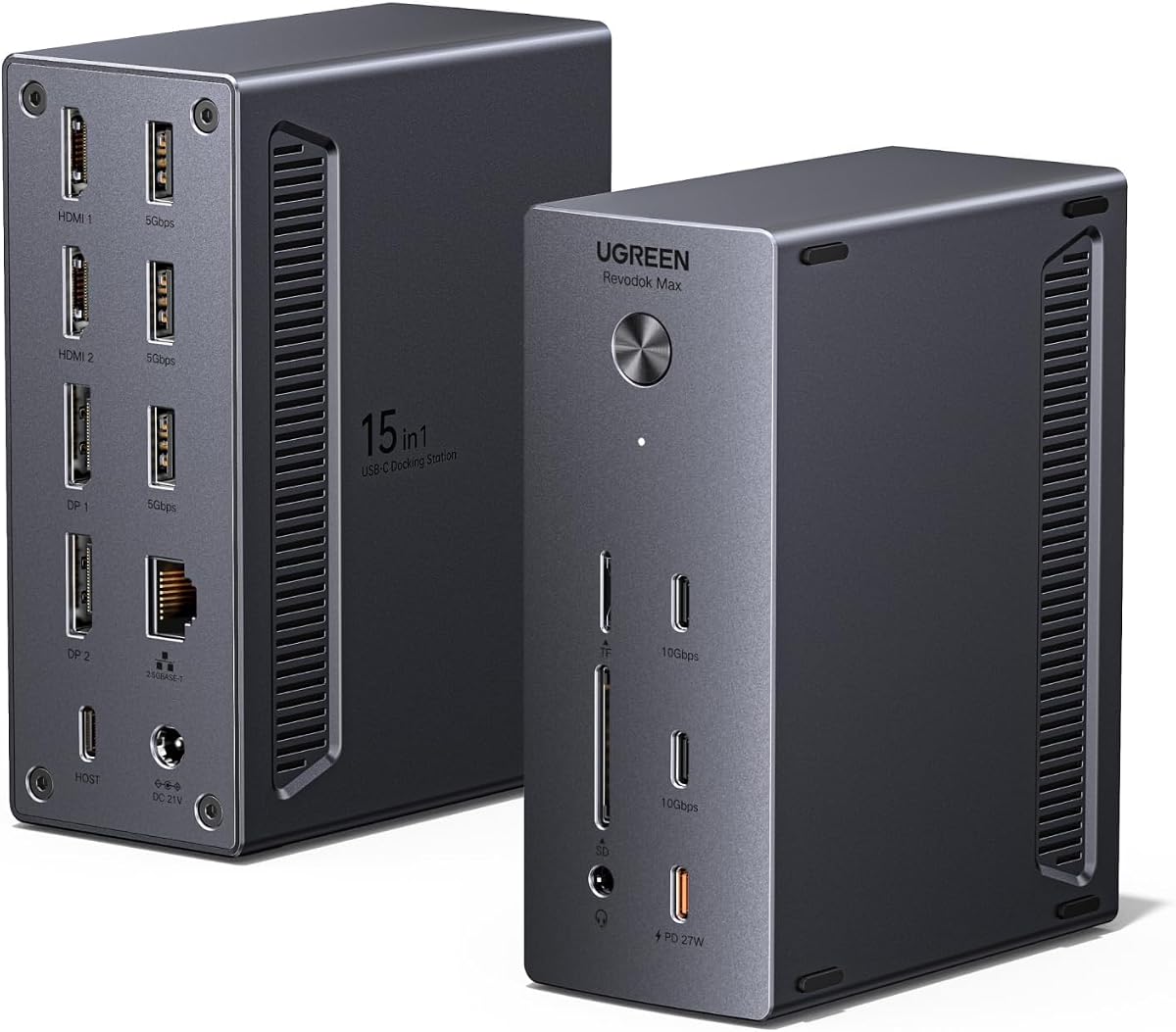
The UGREEN USB-C DisplayLink Docking Station delivers premium features for users needing future-proof connectivity. With a 4.6 rating and 150W adapter, it supports up to 8K displays and robust multitasking.
We may earn a commission when you buy through this link, at no additional cost to you.
Its high-bandwidth ports and 2.5G Ethernet enable fast file transfers and stable networking. The dual charging ports allow simultaneous power delivery to laptop and phone, keeping your workspace tidy.
Although a driver is required, the included USB drive simplifies installation. The dock does not support Nintendo Switch devices, but it works well with macOS and Windows laptops.
This dock is perfect for power users who want top-tier display options and fast networking. Its performance justifies the cost for demanding professional environments.
Supporting up to 8K resolutions ensures this dock remains relevant as monitor technology advances.
2.5G Ethernet provides reliable wired internet, while dual charging ports keep all devices powered without clutter.
We may earn a commission when you buy through this link, at no additional cost to you.
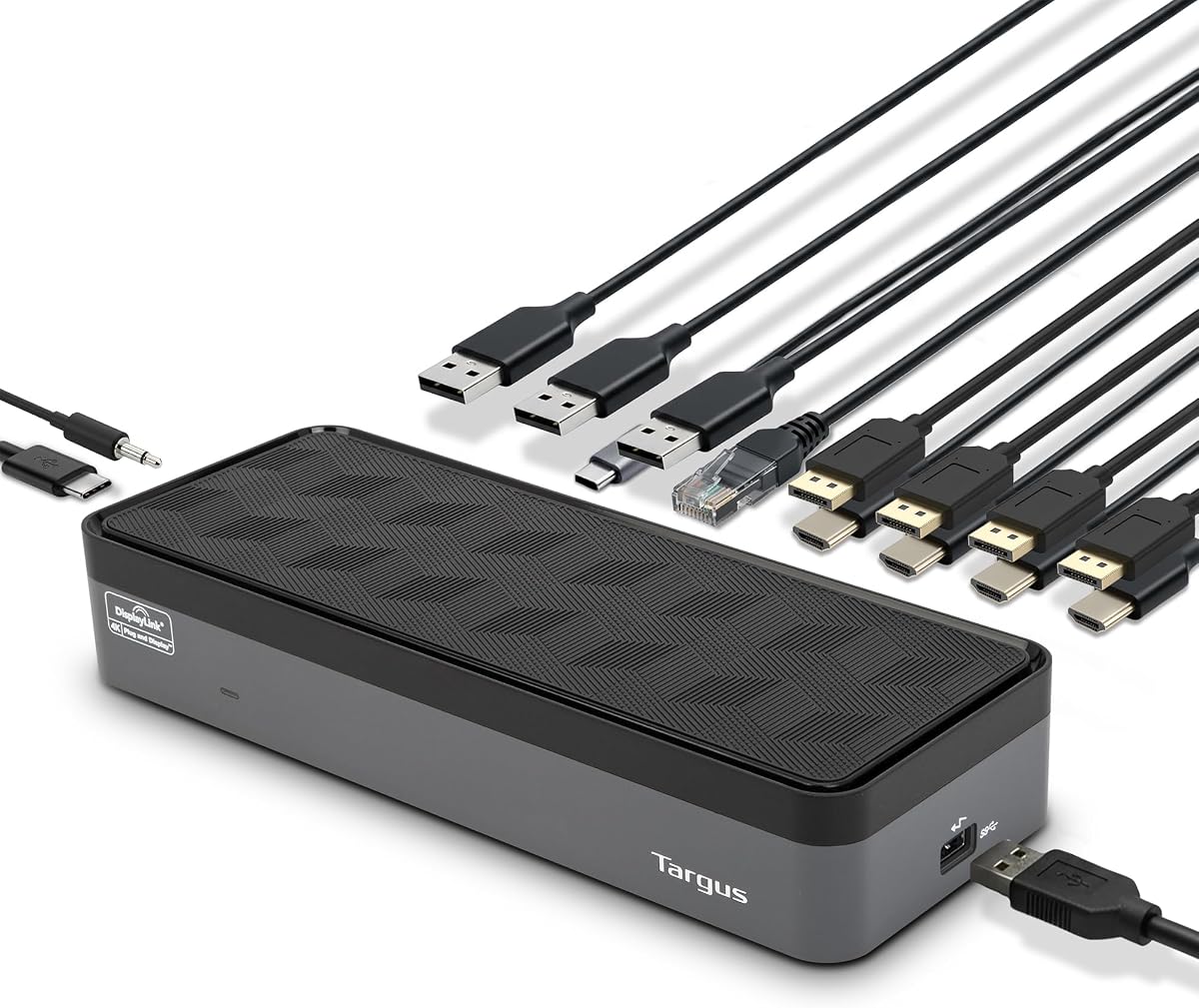
The Targus USB-C Universal Quad 4K Docking Station is a versatile option for expanding your workstation. With a 4.4 rating and 100W Power Delivery, it supports four 4K displays for maximum screen real estate.
We may earn a commission when you buy through this link, at no additional cost to you.
Its universal compatibility allows use with various laptop brands, including legacy models via adapters. The dock includes USB ports, Ethernet, and audio, making it a complete hub for peripherals.
VESA mounting and a security lock slot offer flexibility for different desk setups. However, some users may need to install drivers, and the cost reflects its robust feature set.
This dock suits users who need flexible compatibility and reliable quad display support. It is ideal for offices transitioning from single monitors to multi-screen workflows.
Includes adapters and tips to work with many laptop brands, ensuring broad usability across different devices.
Integrated lock slot and optional VESA mounting help secure and organize the dock in shared workspaces.
We may earn a commission when you buy through this link, at no additional cost to you.
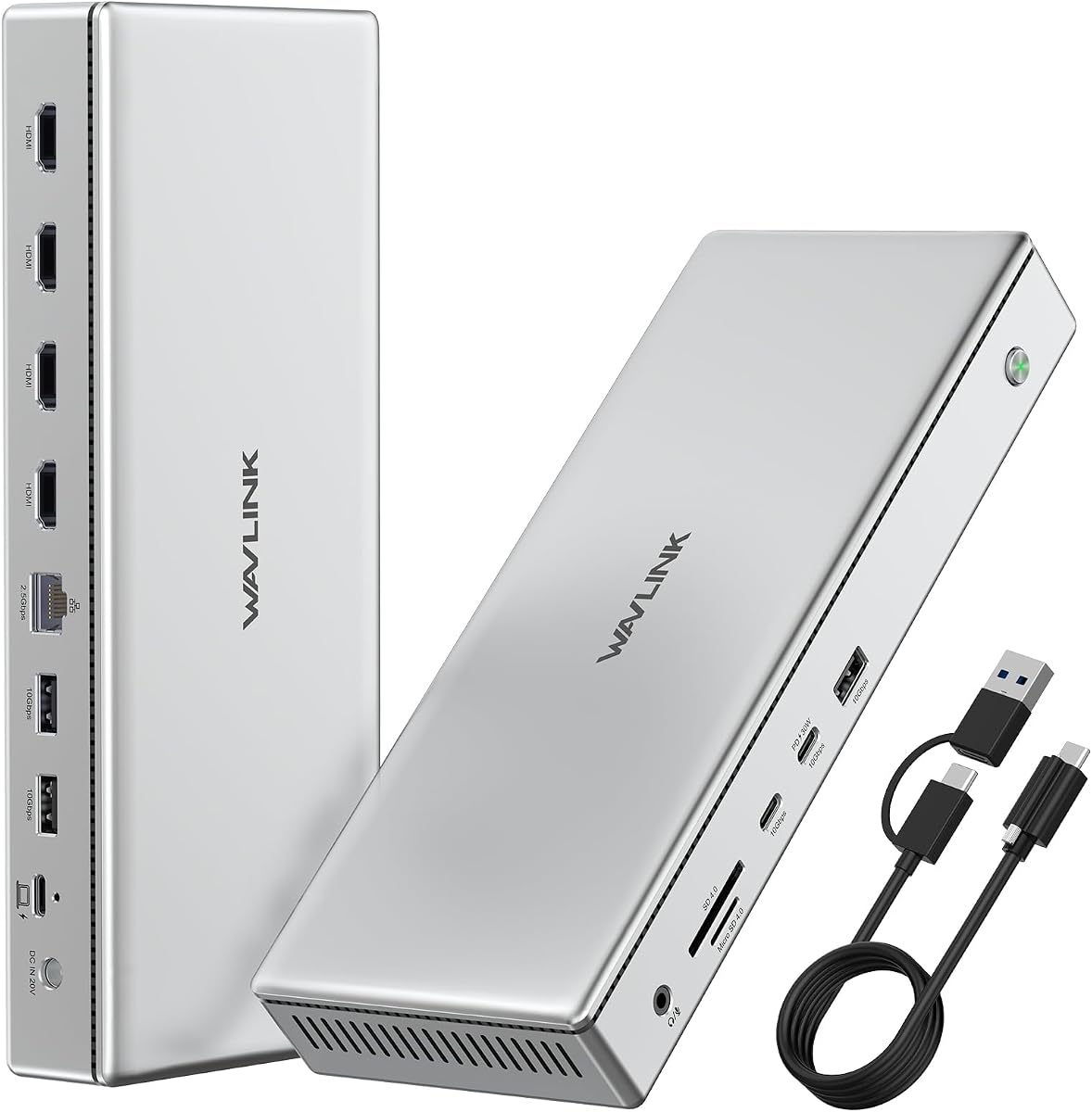
The WAVLINK Pro Docking Station offers an all-in-one solution for multi-monitor setups. With a 4.0 rating and 160W adapter, it supports quad 4K displays via HDMI and includes extensive connectivity options.
We may earn a commission when you buy through this link, at no additional cost to you.
Its 15 ports cover diverse needs, including SD card readers and 2.5G Ethernet. The durable aluminum housing aids heat dissipation, ensuring stable operation during long use.
Compatibility relies on DisplayLink, so driver installation is necessary. While ratings are good, it may not match the performance of top-tier Thunderbolt models.
This dock is suitable for users who want multiple HDMI outputs and card readers. It provides reliable performance for trading, coding, and creative workflows.
The extensive port selection covers all essentials, from display outputs to card readers and network connections.
The 160W adapter charges your laptop and dock simultaneously, reducing clutter and ensuring stable power delivery.
We may earn a commission when you buy through this link, at no additional cost to you.
The TobenONE 18-in-1 DisplayLink Docking Station maximizes productivity with extensive connectivity. With a 4.5 rating and 120W adapter, it supports quad 4K displays on Windows and multiple displays on Mac.
We may earn a commission when you buy through this link, at no additional cost to you.
Its 18 ports allow connections for displays, storage, and peripherals through one USB-C link. The included SD/micro SD slot is convenient for media transfer and workflow management.
Driver installation is required for full functionality, and Linux systems are not supported. However, strong technical support helps resolve issues quickly for users.
This dock is recommended for those needing many ports and display flexibility. It delivers solid performance for home offices and professional productivity.
18 ports ensure all your peripherals can connect simultaneously, streamlining your workstation setup.
A dedicated support team assists with setup and troubleshooting, ensuring a smooth user experience.
We may earn a commission when you buy through this link, at no additional cost to you.
Generic Docking Station Rank 7 is a basic option for users seeking quad monitor support. While specific specs are limited, it provides fundamental connectivity for expanding displays.
We may earn a commission when you buy through this link, at no additional cost to you.
It offers USB-C connectivity and basic port selection suitable for simple setups. This model may appeal to users needing a straightforward solution without advanced features.
Limited availability and unclear specifications make it less suitable for high-performance needs. Users should verify compatibility with their laptop model before purchase.
This dock is for those prioritizing affordability and basic functionality. It may work for light multitasking but lacks the robustness of premium models.
Focuses on core display expansion needs without extra features for general use cases.
Plug-and-play design simplifies connection for users without technical expertise.
We may earn a commission when you buy through this link, at no additional cost to you.
Generic Docking Station Rank 8 offers a compact choice for multi-screen setups. It connects to a USB-C host and provides basic multi-display capabilities.
We may earn a commission when you buy through this link, at no additional cost to you.
Its smaller size suits desks with limited space. However, the reduced port variety may require additional accessories for full peripheral connectivity.
This model is best for light use or temporary setups. Users needing extensive connectivity should consider other options.
It provides an affordable entry into quad displays. Verify your laptop compatibility before purchase to ensure stable operation.
Compact form factor minimizes desk clutter while delivering essential connectivity for displays.
Focuses on essential ports, offering simplicity over extensive features.
We may earn a commission when you buy through this link, at no additional cost to you.
Generic Docking Station Rank 9 provides a standard setup for multi-monitor needs. It includes USB 3.2 ports, Ethernet, and audio connectivity.
We may earn a commission when you buy through this link, at no additional cost to you.
This dock covers essential ports for basic workflows. However, specific display limits may vary by model and laptop.
It is suitable for straightforward tasks requiring stable network and display connections. Advanced users may need more robust options.
Choose this for affordable, standard connectivity. Ensure it supports your laptop before purchasing for best results.
Includes common ports like USB 3.2, Ethernet, and audio for everyday tasks.
Designed to maintain stable connections for displays and peripherals.
We may earn a commission when you buy through this link, at no additional cost to you.
Generic Docking Station Rank 10 offers a simple solution for multi-screen setups. It is compact and designed for easy plug-and-play operation.
We may earn a commission when you buy through this link, at no additional cost to you.
This model provides basic USB expansion for peripherals. It suits users needing minimal connectivity without advanced features.
It may not support high-resolution displays on all laptops. Verify compatibility with your system before purchase.
Choose this for affordability and simplicity. It is best for light multitasking needs.
Plug-and-play setup ensures quick deployment without technical setup.
Compact footprint helps keep your workspace organized and tidy.
We may earn a commission when you buy through this link, at no additional cost to you.
Selecting the right docking station requires evaluating display limits, port selection, power delivery, and compatibility with your laptop's operating system and ports.
Ensure the dock supports the number of displays and resolution you need. Some docks support up to four 4K displays via DisplayLink, while Thunderbolt docks may require specific ports for dual or quad outputs. Check if macOS limits output to three displays regardless of port count.
Look for docks that support 4K@60Hz or higher resolutions to maintain sharp visuals across all screens. Verify compatibility with your laptop's GPU and operating system for best performance.
A docking station with high wattage power delivery reduces cable clutter and charges your laptop simultaneously. Models offering 100W to 160W can power your laptop and connected devices without needing separate chargers.
Check if the dock supports Power Delivery 2.0 or 3.0 for stable and fast charging. Ensure the included adapter matches your laptop's charging requirements.
Evaluate the number and type of ports available, including HDMI, DisplayPort, USB-A, USB-C, and Ethernet. More ports allow you to connect multiple peripherals without additional hubs.
Prioritize docks with USB 3.2 or Thunderbolt 5 for faster data transfers. Include SD card readers and audio jacks if your workflow requires them.
Some docks require DisplayLink drivers to enable multi-monitor support on Mac or Windows, while Thunderbolt docks often work plug-and-play. Check OS compatibility, including macOS, Windows, and Chrome OS, before buying.
Ensure your laptop has the required USB-C or Thunderbolt ports. Linux users should verify driver support since some docks do not support Unix-like systems.
A Gigabit or 2.5G Ethernet port ensures stable wired internet, crucial for large file transfers and remote work. This is especially useful when Wi-Fi is unreliable.
Look for docks with high-speed Ethernet and network stability features. Wired connectivity often provides better latency and reliability than wireless alternatives.
Aluminum or durable housings help dissipate heat, keeping the dock cool during long use. Consider dimensions and port orientation to ensure it fits on your desk.
Security features like K-slot locks can protect equipment in shared spaces. VESA mount compatibility allows flexible positioning for ergonomic setups.
Prices vary from budget-friendly DisplayLink docks to premium Thunderbolt models. Balance cost with features like driverless setup, high-power charging, and multiple display support.
Invest in a dock that meets your current and future needs. Higher-end models often provide better longevity and support, making them worth the extra cost.
Look for manufacturers offering lifetime technical support or warranty. Reliable support helps resolve issues quickly, minimizing downtime.
Check if the brand provides drivers and troubleshooting guides. Good after-sales service ensures smooth setup and operation.
Connect the docking station to your laptop via USB-C or Thunderbolt, then plug in all monitors and peripherals. For DisplayLink models, download and install the latest driver before use.
Ensure all displays are powered on and configured in your system settings to extend or mirror screens. Adjust resolution and refresh rates in display settings for consistent performance.
Keep the dock in a well-ventilated area to prevent overheating. Periodically update drivers and firmware, and clean ports gently to maintain reliable connectivity.
Yes, with DisplayLink technology, a single USB-C port can drive up to four 4K monitors. Thunderbolt docks may require multiple Thunderbolt ports or daisy-chaining for four displays depending on the model.
Most docking stations support both macOS and Windows. However, DisplayLink models require driver installation, and some features vary by operating system.
DisplayLink uses software compression to transmit video data over USB, allowing multiple displays without high-bandwidth ports. Drivers are needed to enable this functionality on your operating system.
Check your laptop's wattage requirements, typically 60W to 100W for most models. A dock offering at least 100W PD ensures full charging without needing separate power adapters.
Most docking stations do not support Nintendo Switch as a host. They are designed for laptops and desktops with USB-C or Thunderbolt ports.
Ensure all cables are securely connected and the dock is powered by its adapter. Update drivers and check display settings for correct resolution and refresh rates.
Choosing a docking station with quad monitor support depends on your specific workflow, laptop capabilities, and budget. Top picks like StarTech Thunderbolt 5 and TobenONE DisplayLink models offer distinct advantages for different needs.
Prioritize compatibility, display support, and power delivery when selecting a dock. Investing in quality ensures stable performance and longer usability as technology advances.
Verify current prices and availability before purchasing. Checking manufacturer support and warranty terms also helps ensure a smooth experience with your new workstation setup.